
Step One. Add Your Heading Text Here
Live Streaming with #LocoCabCam™ Using RTSP
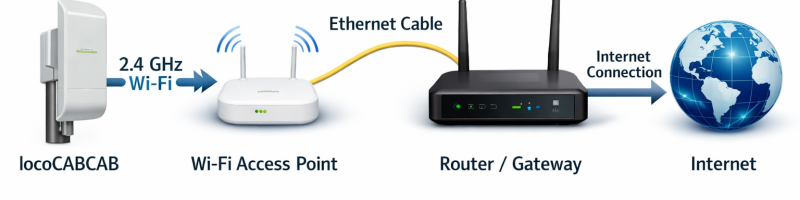
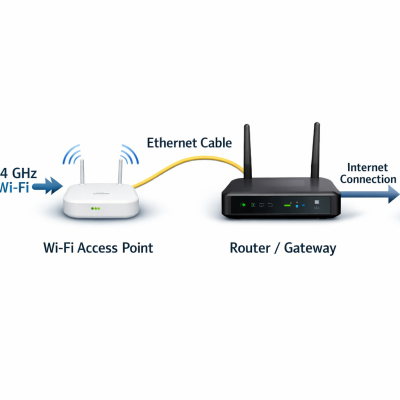
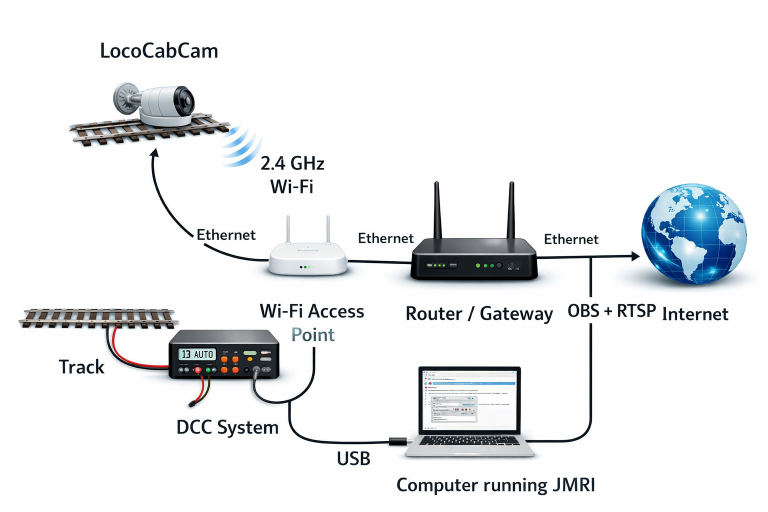
The #LocoCabCam™ system streams live video using the RTSP (Real Time Streaming Protocol) over a standard 2.4 GHz Wi-Fi connection. The onboard camera connects to your home wireless router, allowing the video feed to be accessed anywhere on your local network.
The camera continuously broadcasts an RTSP video stream, which can be opened by a computer running OBS Studio (Open Broadcaster Software). OBS receives the RTSP feed as a video source and can then encode and transmit the stream directly to YouTube Live or other streaming platforms.
The process works as follows:
#LocoCabCam connects to your home Wi-Fi router using the 2.4 GHz wireless network See. Products
The camera transmits a live RTSP video stream across the network.
A computer running OBS Studio connects to the RTSP stream as a media source.
OBS encodes the video and sends it to YouTube Live for real-time broadcasting.
This setup allows model railroad operators to broadcast a live engineer’s-eye view from the layout to viewers anywhere in the world, creating an immersive operating experience for both hobbyists and audiences online.
If you want, I can also write a very short “Quick Setup Guide” (5 steps) that people can follow to get a LocoCabCam livestream running in about 3 minutes. That kind of section works really well on product pages.
Step Two : Connecting JMRI
Installing JMRI for Remote Railroad Operations
JMRI allows model railroad operators to control locomotives, turnouts, signals, and accessories from computers, tablets, or smartphones over a network. Using JMRI’s web server and Wi-Fi throttle features, operators can control the layout remotely from anywhere on the local network.
Basic Installation Outline
1. Download JMRI
Visit the official JMRI website and download the latest version of JMRI for your operating system (Windows, macOS, or Linux).
2. Install the Software
Run the installer and follow the installation prompts. JMRI installs several applications, including PanelPro, which is typically used for layout control and automation.
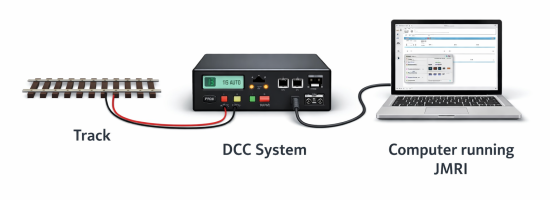
3. Connect Your DCC System
Connect your computer to your layout’s DCC command station using the appropriate interface (USB, Ethernet, or serial connection depending on the system).
4. Configure JMRI Preferences
Open PanelPro and configure the connection to your command station in the Preferences menu. Select the correct system manufacturer and communication port.
5. Enable the Web Server
In the JMRI preferences, enable the built-in web server. This allows phones, tablets, and other computers on your network to connect to the layout through a web browser.
6. Connect Remote Devices
Remote operators can open a browser and connect to the JMRI server by entering the computer’s IP address and port number (typically :12080). This launches the web throttle interface where locomotives can be controlled remotely.
Step Three - Addition Software
Additional Software for Remote Computer Operation
For remote operation and live broadcasting of a model railroad layout, the control computer running JMRI may require several additional software tools. These programs support remote connectivity, live streaming, and advanced graphical control of locomotives and layout systems.
Dynamic DNS Monitoring
A dynamic DNS update utility such as FreeDNSUpdate can be installed on the remote computer to monitor the network’s public IP address. Many home internet connections receive changing IP addresses from the ISP, which can interrupt remote access.
The DNS update software automatically detects IP address changes and updates the assigned domain name, ensuring that remote users can always connect using the same URL without needing to know the current IP address.
Canadian Locomotive Logistics Control Software
Custom control software developed by Canadian Locomotive Logistics can be installed on the system to provide an advanced graphical user interface (GUI) for locomotive operation.
This interface allows operators to control functions such as:
Locomotive throttle
Direction control (forward / reverse)
Bell and horn
Dynamic brake
Independent brake
Automatic brake
Sanders and auxiliary functions
The GUI integrates with JMRI and provides a web-based control panel that can be accessed from remote devices through a browser.
Live Video Streaming Software
To broadcast the onboard camera feed from #LocoCabCam, the computer can run OBS Studio. OBS receives the camera’s RTSP video stream and encodes it for transmission to streaming platforms such as YouTube Live.
This setup allows viewers to watch a live engineer’s-eye view from the layout while operators control trains remotely through the graphical interface.
Typical Software Stack
A complete remote operations system may include:
JMRI – Layout control and automation
FreeDNSUpdate – Dynamic DNS and remote access reliability
Canadian Locomotive Logistics GUI – Web-based locomotive control interface
OBS Studio – Video encoding and livestream broadcasting
Together, these components create a powerful environment for remote layout control, monitoring, and live broadcasting over the internet.
Step Four - Configuration
Network Configuration for Remote Access and Live Operations
To allow remote operators and viewers to interact with the layout from outside the local network, several basic network and communication configurations must be completed.
Router Port Forwarding
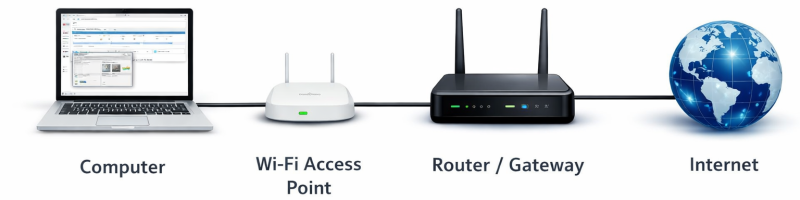
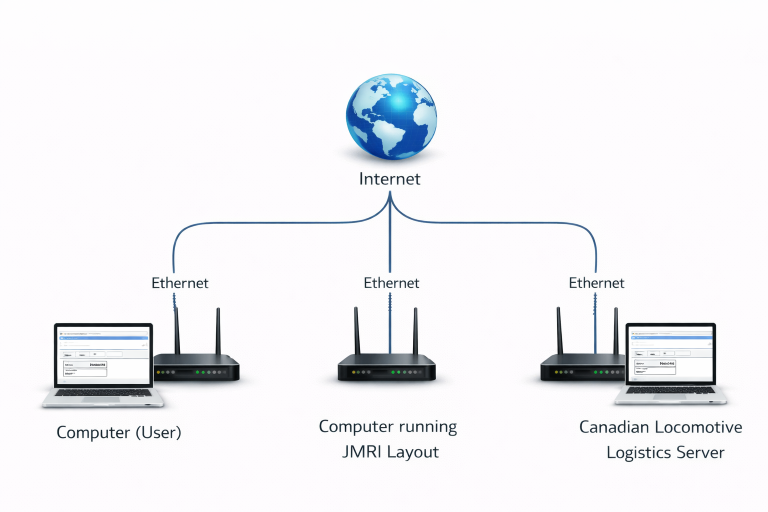
The layout control computer and onboard camera systems operate inside the home or club Local Area Network (LAN). To make these services accessible from the internet, the router must be configured to forward specific ports to the computer running the layout software.
Typical examples include:
RTSP camera stream port for the #LocoCabCam video feed
Web server port used by JMRI for remote throttles and layout control
Custom web interface ports used by the Canadian Locomotive Logistics control dashboard
Port forwarding directs incoming internet traffic from the router to the correct internal computer on the network, allowing remote users to access the layout services securely using a known web address or domain name.
Remote Communication Between Engineers
During remote operating sessions or livestream events, communication between engineers is important for coordination and interaction with viewers. This is typically handled using social media communication tools and live chat platforms.
When broadcasting with OBS Studio, the video feed can be streamed to YouTube Live, where viewers and operators can interact through the live chat system. Engineers operating locomotives from different locations can monitor the chat and respond to questions or comments from the public.
In addition to YouTube chat, operators may also use common communication platforms such as:
Discord for voice channels
Zello for organized operator communication LocoCabCam Communication channel
These communication tools allow engineers in each cab to coordinate train movements, respond to dispatcher instructions, and interact with viewers during live broadcasts.
Resulting System
With proper configuration, the layout becomes a fully interactive remote railroad, allowing:
Engineers to control trains remotely
Live onboard camera viewing
Public livestream broadcasts
Real-time communication between operators and viewers
This creates a highly immersive and engaging model railroad experience both for operators and the online audience.
Finally, lets run a train.
Starting a Remote Operating Session with LocoCabCam
To begin a remote operating session, power on the LocoCabCam-equipped locomotive by placing it on energized DCC track. The onboard system starts automatically, using track power to charge the internal lithium battery and initialize the camera and Wi-Fi connection. Within a few seconds, the LocoCabCam connects to your home network over 2.4 GHz Wi-Fi and begins transmitting its RTSP video stream.
On the streaming computer, OBS Studio detects the RTSP camera feed and captures the live engineer’s point-of-view video. OBS then broadcasts this video directly to YouTube as a live stream, allowing viewers and remote engineers to see exactly what the locomotive operator would see from the cab.
Next, open your Canadian Locomotive Logistics web control interface in a browser. From the locomotive selection list, connect to the specific locomotive you wish to operate. Once connected, the graphical user interface (GUI) provides full control of the locomotive, including throttle, direction, brakes, bell, and other locomotive functions.
All commands sent through the GUI respond instantly, providing smooth and precise operation. Combined with the live RTSP video feed, this creates a true remote engineer experience, allowing operators anywhere on the internet to control and drive the locomotive while viewing the track from the engineer’s perspective. 🚂
High Greens....
Please be respectful when running on other peoples layouts.